
Gaming Setup Guide
Build a Setup Around Control.
A refined gaming setup is more than a collection of hardware. It is the balance between input feel, desk space, clear audio, comfortable positioning and a layout that keeps every essential control where you expect it.

Five decisions shape the entire battlestation.
Build in sequence instead of adding equipment at random. Each layer should support the next one, keeping your desk focused, responsive and easier to adapt.
Set the Foundation
Define your usable desk zone and leave enough clear surface for natural mouse movement and keyboard positioning.
Choose Your Control
Match mouse shape, keyboard format and controller placement to the games and movements you use most.
Clarify Communication
Position headphones, headsets or microphones so switching between play and communication feels immediate.
Organize the Desk
Route cables, charging points and secondary gear away from your primary input area.
Tune the Details
Adjust placement, lighting and accessory positions only after the core setup feels consistent.
Build your primary control zone first.

Keep movement clear and repeatable.
Your keyboard and mouse should feel like one coordinated control surface. Start with comfortable arm placement, then choose the amount of space each device receives instead of forcing them into a crowded layout.
-
M
Mouse movement Leave enough uninterrupted surface for the sensitivity and movement style you actually use.
-
K
Keyboard position Keep frequently used keys centered around a natural shoulder and wrist position.
-
P
Desk surface A consistent mouse pad or desk mat creates a defined input area and helps separate active controls from secondary gear.
Keyboard feel changes how the whole desk behaves.
Layout size, key response and desk position all affect available mouse space. Treat the keyboard as part of your movement system rather than a separate accessory.
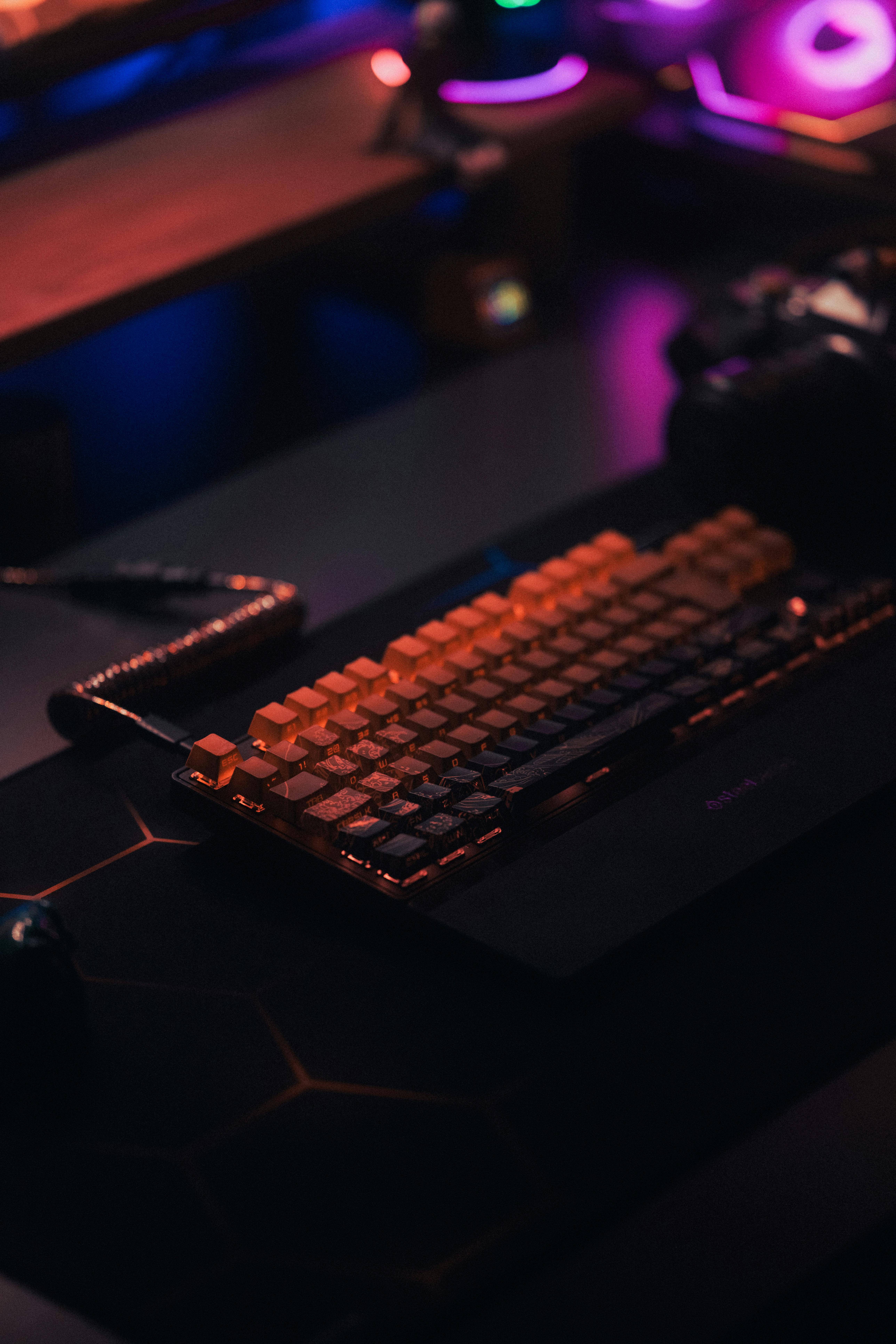
Prioritize the keys you use, not the largest layout.
A more compact keyboard can create additional mouse room, while a larger layout may suit players who regularly use navigation, function or number keys. Choose around workflow rather than appearance alone.
Give every piece of gear a clear role.
The strongest setups create visual order without making the desk rigid. Separate primary controls, secondary devices and support equipment into clear zones.
Primary Controls
Keep mouse, keyboard and controller access uncluttered. These are the tools that should require the least adjustment during play.
- Clear mouse travel area
- Stable keyboard placement
- Easy controller reach when needed
Audio & Communication
Headsets and microphones should be accessible without occupying the center of the desk or interfering with input movement.
- Headset storage within reach
- Microphone away from mouse travel
- Simple mute and volume access
Support Equipment
Charging, cable routing, lighting and monitor accessories work best around the perimeter rather than inside your active control area.
- Accessible charging points
- Controlled cable paths
- Lighting used as a subtle signal
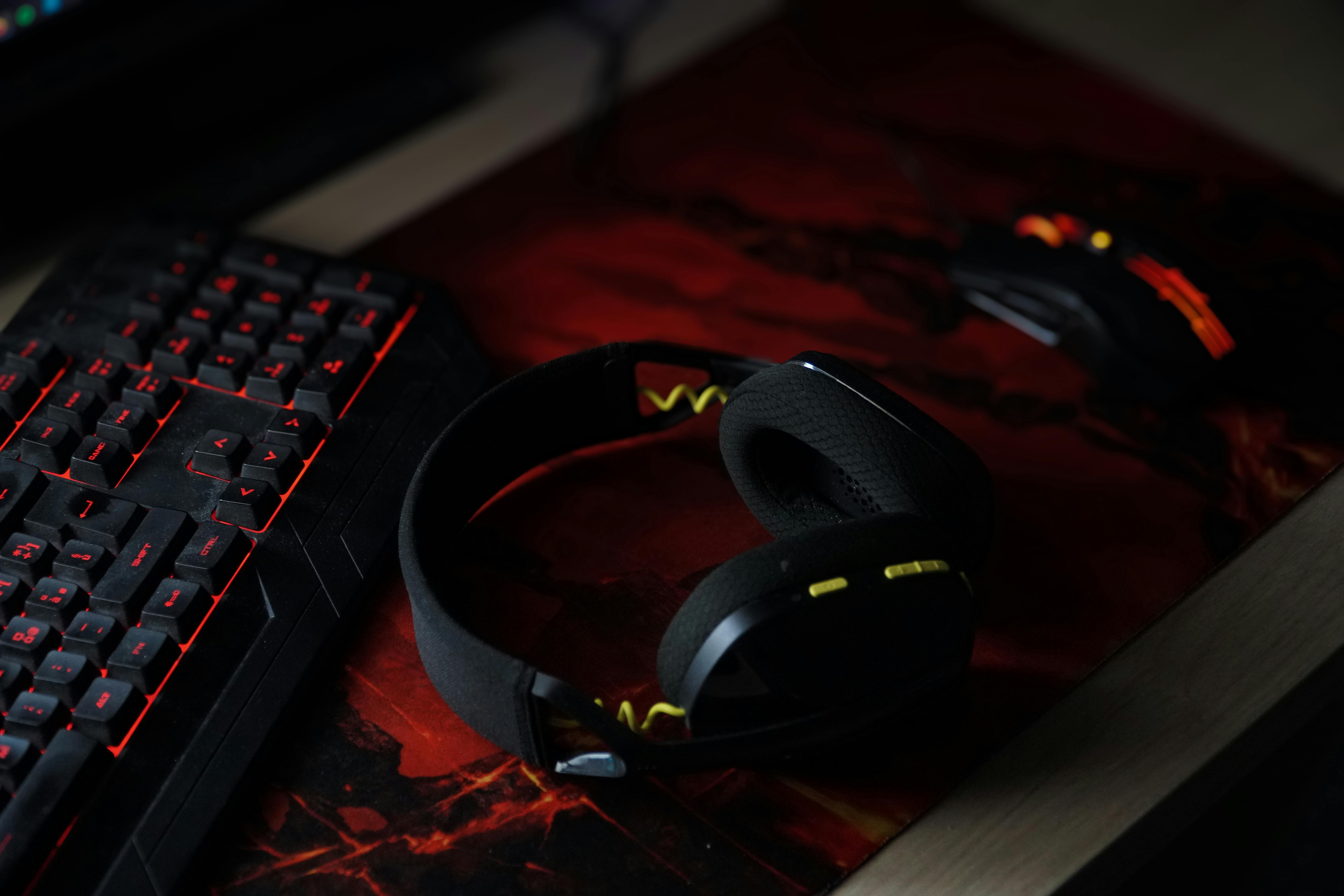
Clear audio should integrate without adding friction.
Keep communication close, but out of the way.
Audio gear works best when it can enter and leave your workflow quickly. Keep frequently adjusted controls easy to reach while preserving a clean central desk area for movement and input.
-
01
Headset access Store the headset near your seated position so putting it on never requires reaching across other equipment.
-
02
Microphone placement Position microphones outside the main keyboard and mouse path while keeping controls easy to adjust.
-
03
Cable direction Route audio cables toward the rear or side of the desk so they do not cross your primary input surface.
Build around the way you actually play.
Different gaming routines create different desk priorities. Start with the equipment that supports your main sessions, then add secondary gear without disturbing the core layout.
Precision First
Keep the central desk open and prioritize immediate access to mouse, keyboard, audio controls and a consistent movement surface.
- Large clear input zone
- Minimal desk obstruction
- Fast audio access
- Reduced cable interference
Flexible Control
Create a layout that moves easily between mouse and keyboard, controller play and everyday desktop use without constant rearrangement.
- Controller within secondary reach
- Adaptable keyboard position
- Shared charging access
- Clear equipment zones
Workflow Balance
Add microphone and streaming equipment around the core gaming area so communication tools remain accessible without dominating the desk.
- Microphone outside mouse travel
- Easy audio adjustments
- Organized power routing
- Room for secondary controls
Refine the desk before adding more gear.
A focused battlestation should feel natural before it looks finished. Run through these checks after your main peripherals are in place.
Check your reach
Frequently used controls should be accessible without leaning forward or reaching across the desk.
Clear mouse travel
Move through your normal range and confirm that cables, keyboard edges and accessories stay outside the path.
Review cable paths
Route power, audio and charging cables toward the rear or sides rather than across the active surface.
Test device switching
Move between keyboard, mouse, controller and audio controls to make sure each transition feels straightforward.
Reduce visual noise
Remove accessories that do not support control, audio, organization or the way you use the desk.
Tune lighting last
Use restrained lighting to support screen visibility and atmosphere after equipment placement is complete.